Showing posts with label unit. Show all posts

Tuesday, May 8, 2012

Students Encouraging Students to READ!

Subject: Language Arts
Grade: 5
Technology tools: Computer
Tools used: Interactive Website
Activity type: Lesson, Unit, Project

Fifth graders at Viewmont Elementary created multi-genre projects to promote and encourage classmates to read their books. Students could choose from a selection of assignments to create their projects.

Some of the projects that used technology included:


  • Characters from the students' books corresponded through email.
  • The students used Microsoft Word to create a TOP 10 list of reasons to read their book.
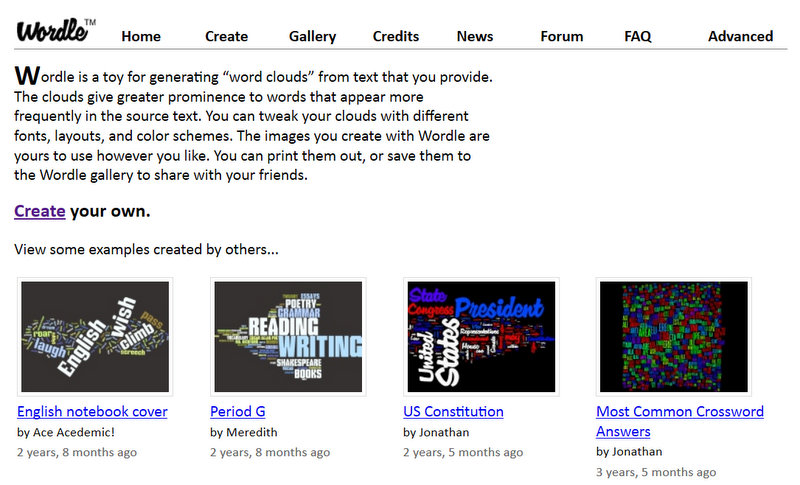
  • Students made WORDLES about their book including: description of characters, setting, character names, important events, and tough words.
    http://www.wordle.net/


  • Birth Certificates and Eulogies using information about the characters were created on publisher.
  • Students used Google Maps to create a map of the travels in their story.
  • Glogs were created to promote the exciting events in their books.
    http://www.glogster.com/


These projects were presented to classmates along with a persuasive essay to promote reading. The students were able to use their creativity and higher order thinking to complete a project using technology. The process of the project not only exposed students to technology, it got kids excited about books! Peer recommendations got kids talking, discussing and reading!!!

Beth Norwood, Viewmont Elementary

Monday, May 7, 2012

Math at Grandview

Subject:  Math
Grade:  7
Technology tools:  Computer(s), Laptop(s), LCD Projector, digital cameras
Tools used:  Simulation, Digital manipulative, Digital text / ebook, Word processing, Communication tool, Collaboration tool
Activity type:  Lesson, Unit, Project, Teacher presentation, Assessment, Research, Tutorial

Unit Topic: Math at Grandview

Learning Target: Create and present a presentation with peers showing math shapes and concepts  found at Grandview

Curriculum standards and objectives:
·         All 7th grade math standards and objectives were covered:  Goal 1...Number and Operations, Goal 2...Measurement, Goal 3...Geometry, Goal 4...Data Analysis, Goal 5...Algebra

·         Info and tech standards: Assimilate and evaluate information
 
Students were to create a PowerPoint presentation using shapes and measurements found at Grandview.

·        Step 1: Students were divided into groups and given the rubrics necessary for the project.

·        Step 2: The groups were  given a stop watch and digital camera. Following the rubric they were to take up to 15 pictures to use on their slides.

·        Step 3: Following the rubric they created a PowerPoint presentation to present to their class and parents at PTA night.

Students were assessed using a rubric that included  a group grade for content and presentation. The participation grade was for each individual (each group member graded the members of their group according to a rubric and I averaged these together to get the individual's participation grade).

This activity was extremely successful. The discussions that were generated when the projects were presented were amazing. Students asked each other probing questions and pointed out things that were in the slides that the presenters did not notice.  Students were also able to point out mistakes in a nonthreatening manner.

Changes for the future: The one change that I would make would be to I sign up for the computer lab for an extra day. (The students became so involved that they wanted to do the same project again but take different pictures.)

Ellie Wilson,  Grandview

Using Technology in a Kindergarten Classroom

Subjects:  Math, Language Arts, Social Studies, Information Literacy
Grade:  K
Technology tools:  Computer(s), LCD Projector, Student Response Devices, Cd/tape player
Tools used:  Interactive website, Video, Audio
Activity type:  Lesson, Unit

Topics/Objectives:
  • Social Studies: we were studying symbols.
  • Math: No matter what we are studying, the LCD projector is always used. The students' attention is kept because they are more involved. I will use counters, and overhead pieces for the lessons. For Kindergarten, this is very interesting to them.
     
  • Literacy: We have a listening and computer center that we use in our classroom every day. Both of these are tied into literacy and what we are studying that week. 
In Social studies we were learning about symbols. We watched a video on United Streaming about different symbols. The students loved it.

In literacy centers every week we have a listening center. Students listen to a story on tape and follow along in their books.

In math and in literacy we use the overhead projector. We use this for many things in math including counting numbers 1-20, addition, shapes, etc...


In literacy centers we also use the computer every week. It depends on what we are currently studying that week as to what the game/activity may be. We have done short vowel games/long vowel game, consonant digraph practice, abcya.com and starfall.com.

All of these activities have been very successful. The students love when technology is involved.

Using Google Docs in IB English


Subjects:  Language Arts, English IV IB
Grade:  12
Technology tools:  Computer(s), LCD Projector
Tools used:  Interactive website, Collaboration tool
Activity type:  Unit

After two years of study and practice, IB seniors take two two-hour exams that count as a combined 50% toward their IB certificate for the Language A1 -- IB English certificate.  One of the tests is based on four novels we read during the spring semester.  My objective for these activities is for students to assemble information from each of the four novels that will be helpful in their preparations for the final exam in May.  (In addition to helping the students for THIS exam, of course, these activities also teach students how to consolidate information from a course, study, and prepare for college exams.)


To prepare them for studying, I usually have the students individually create time-consuming, laborious packets of information (including summaries and lists of themes, motifs, symbols, meaningful quotes, etc) as study guides from themselves.  This year I used Google Docs to make repositories for all that information, and my seniors were assigned to contribute one to two good items for each category sheet.


For example, on the symbol sheet for the novel BELOVED, everyone jumped in and gave great examples of the symbols, documented sections of the novel where the symbol(s) appear, and interpretations for what the author Toni Morrison accomplishes with the symbol.  Now, through online collaboration, the students have created excellent study guides that they may print out and use during their study sessions for the exam!  They get wonderful, helpful tools without having to expend as much energy and time as before!  That is called working better... and smarter!


After each entry students make, they type their names so that I may see who contributes what.  I then evaluate the entries on completeness, correctness, and elaboration.

Students really enjoyed these Google Docs assignments!  For one thing, they have all created Work Packets for other novels before, and they expressed how much better collaboration is over individual packet assignments:  less work, all the benefits!  Students also had a great time reading what other colleagues found in the novels. Sometimes class discussions revolved around entries on Google Docs (which thrilled me because their excitement translates into deeper understanding and analytical skill).  Often, students raced to post early so that they could give examples of and explain the items they wanted to cover.  Students who procrastinated sometimes had to work harder because many of the more obvious or apparent ideas from the novel were already taken.

Chris Rice,  Hickory High

Integrating Technology in Music


Subject:  Music (Arts)
Grades:  6, 7
Technology tools:  Computer(s), Laptop(s), Tuners, Phones
Tools used:  Interactive website, Video creator / editor, Audio creator / editor
Activity type:  Unit, Assessment

Learning Targets:
I can tune my instrument accurately
I can perform_________ in tune and with a steady beat.

We use digital tuners and smart phone apps to check our accuracy when we tune.

We also are using the interactive SmartMusic program for a SmartMusic review challenge with 6th and 7th graders.

Students use their phones and my iPhone to record tests and to send home recordings to practice with.
Tuners were purchased with a grant from DKG Sorority.

Students assess their progress on a daily basis with tuners and SmartMusic.  Test scores are about 20% higher for students who use their own phones to record tests and retests are higher for those who send their tests home to review using my iPhone.

We will continue to use all these strategies.

Integrating Technology Tools into Art Instruction

 
Subject:  Arts
Grades:  4, 5
Technology tools:  Computer(s), Digital camera
Tools used:  electronic presentation
Activity type:  Lesson, Unit, Project, Research, individual/collaborative work

My objectives are to encourage the use of technology in my classroom, to have the students learn more about using digital cameras/computers, to demonstrate that electronic presentations can be an art form, and creating electronic presentations can be a real life art career.

My students are working as teams to create electronic presentations on one (of their choice) of the Elements of Art.  They can choose from color, shape, line, texture, value, space, or form. 
They are using the computer and digital camera to explain/teach/illustrate their product with visuals.
This lesson, still in the works, has caused a lot of excitement with the students! 
I have found that we help each other.  I share my skills and they enjoy helping me and the other students by sharing their skills.

I'll be as proud of them as the students because this is a learning process for me too!
I use this as a real life situation.  We have a company that needs an informational product and the students are the producers of the product.  The class response will be the judge if their product would fit the needs of the company.

Since this is a visual product we will have the actual finished work for the assessment.
They are required to have at least ten pages and more is encouraged.  At this point it may be necessary to limit them since they are so excited!  Intro page, definition, examples of the Element, actual examples they found at school and from research on the computer will be included, and the compilation of team's efforts are some of the things I expect them to have in their presentation.

This activity has been highly successful so far.  I have students coming in during the day to tell/show me things they have found in the school to demo their element.  For example - I like seeing them get excited about the texture of the wall!  It may be the first time they really looked at them closely.  It is like a new discovery for them.

These productions will be used with my students next year to introduce the students to the various Elements of Art as we use them and as an example of what they can do also.

I would like to have an LCD projector to use so the creators could see what it looks like on a big screen, see what they might need to adjust for a more eye catching product and also to show the final products to the rest of the students.

Donna Buchanan, Art, Jenkins Elementary

Family Heritage Project


Subjects:  Language Arts, Social Studies, Information Literacy
Grade:  4
Technology tools:  Laptop(s)
Tools used:  Digital text / ebook, Word processing
Activity type:  Lesson, Unit, Project, Assessment, Research, State Writing Assessment


Students interviewed their oldest living relative as part of the Family Heritage Project. The asked the person a series of 18 questions that compared and contrasted their own life to that of the interviewee.   The word processing skills gained have impacted the many, many other projects and technology integration we do on a daily basis in our classroom.

Students then composed specific information into a paragraph outline to create a 6 paragraph paper.  Students were able to edit, use word-processing skills, connect Language Arts skills and edit documents like you would in a real News Reporting room.

This part of the project was also the State Writing prompt for our school. Students used the finished documents to create a lovely family treasure for year's to come.

Students met with teacher to look at text features, content, and go through the writing process.

Cynthia Thompson-Schmidt, Jenkins Elementary

Using PhotoPeach with ESL Students


Subjects:  Language Arts, Science, Social Studies
Grades:  K, 1, 2, 3, 4, 5
Technology tools:  Computer(s), Laptop(s), LCD Projector, Interactive Slate
Tools used:  Interactive website, Video, Digital text / ebook, Audio, Audio creator / editor, Word processing, Image creator / editor
Activity type:  Lesson, Unit, Project, Teacher presentation

I used PhotoPeach, a web-based, user-friendly, slideshow maker, to integrate science and technology, and ESL/ELA content and technology. In one third grade project, students studied main idea, comparing and contrasting, and Tier 2 words, and science content. After drawing pictures and writing descriptive sentences that compared and contrasted, they were able to upload their drawings, and add music, text, and comments to their presentations.

A similar activity was done in first grade; with more of a focus on sentence structure.
Another PhotoPeach project integrated the school-wide Career Day presentations by parents and community members. After pictures were uploaded, students added descriptive sentences, which are now to be presented to parents and attendees at Awards Day.

PowerPoint presentations and interactive slates have been a part of my curriculum for a few years now.

Crystal Pritchett, Jenkins Elementary 

Civil War Presentations using PowerPoint and Prezi


Subjects:  Math, Language Arts, Social Studies
Grades:  3, 4, 5
Technology tools:  Laptop(s), LCD Projector
Tools used:  Video, Word processing, Social media tool, Communication tool
Activity type:  Lesson, Unit, Project, Research

Students researched famous people of the Civil War and created PowerPoint presentations and Prezis to present along with their costumes and tri-folds for the Civil War Wax Museum.  Students viewed videos, researched their people, printed pictures, made PowerPoint presentations, and created Prezis.  Student learned how to save their information to their individual student share folders, and send their info to themselves through email, as well as save their info on flash drive.  On the day of the Wax Museum, students used the netbooks in the mall area of our school as part of their presentations.

Students were given a full rubric for the project that included use of technology.

The activity was very successful and I would like to link the Prezis together in a movie for next year's students to view.

Janet Hambrick,

Learning about Amphibians

Subjects:  Science, Social Studies, Information Literacy
Grade:  1
Technology tools:  Computer(s), LCD Projector
Tools used:  Interactive website, Video, Digital text / ebook
Activity type:  Lesson, Unit, Research

 
We are learning about amphibians this week.  We have integrated both our Weekly Readers (and the online digital edition) and National Geographic for Kids websites to allow the children to explore and find out where these animals live, how they defend themselves, what they sound like, and what they eat.  The Weekly Reader online edition allows children to see and hear what they are learning about through the incorporation of video clips.  National Geographic for Kids online has allowed the children to not only learn of the animal habitats, but how they survive, defend themselves, and even what these animals sound like.

We began this lesson in our classroom while the children had the paper edition of Weekly Reader at their desks.  I used my projector to display the digital edition on my board.  We took turns reading information regarding amphibians.  Video clips were shown of frogs/toads catching their prey, and how camouflage benefits them.  Students were also asked to use higher level thinking skills to answer questions about why frogs benefit from being camouflaged.  After we finished reading, I showed the students where they would be "going" once we got to the computer lab.  I modeled where students would log on, what they would be searching for, and explained that they would need to tell me something new they learned about amphibians from the National Geographic forKids web site.

Assessment:  Children needed to verbally tell me something they learned today about amphibians.

Laura Streamer,  Longview

Monday, April 23, 2012

United Streaming - My Builder Tools


Subjects:  Math, Language Arts, Science, Social Studies
Grades:  K, 1, 2, 3, 4, 5, 6, 7, 8, 9, 10, 11, 12
Technology tools:  Computer(s), Laptop(s)
Tools used:  Interactive website, Video
Activity type:  Lesson, Unit, Project, Assessment, Research, Tutorial

United Streaming is such a valuable resource that I wanted to share how I have used it at both the Elementary and High School levels for differentiation. We are all searching for ways to improve differentiation and this is a great way to provide both enrichment and remediation. It gives you ways to assess and evaluate student progress that are easy to monitor.


United Streaming allows you to set up classes as a whole or by individual students. As you search the activities and videos on United Streaming; you can save them to My Content. From there you can choose to edit, share, delete or rename them. You then assign them to individual students or whole classes. You can add your own assignments or use the worksheets that come with many of the videos.

When you use the My Builder Tools it allows you to create new assignments, quizzes or writing prompts. Again, you can create your own or use Discovery Education provided activities.

This is the perfect way to individualize instruction. The children easily learn how find their name and class, so all you have to do is log in and tell them they have assignments on Discovery Education or United Streaming.

The assignment manager provides ways for you see results by class or individual student or login code. Obviously, assessment would depend on the assignment. But I really like having an easy way to keep track of who has finished and needs more enrichment, or who needs extra help.

I have found this perfect for those students who need extra help or are very visual learners. It allows me to work with students who need extra help and not feel like my students are "playing" on the computer.  A simple and easy way to differentiate instruction!

Elizabeth Brant,  Oakwood, Viewmont